Troubleshooting Zensim Activation Issues in Thailand 2026
10/18/2026
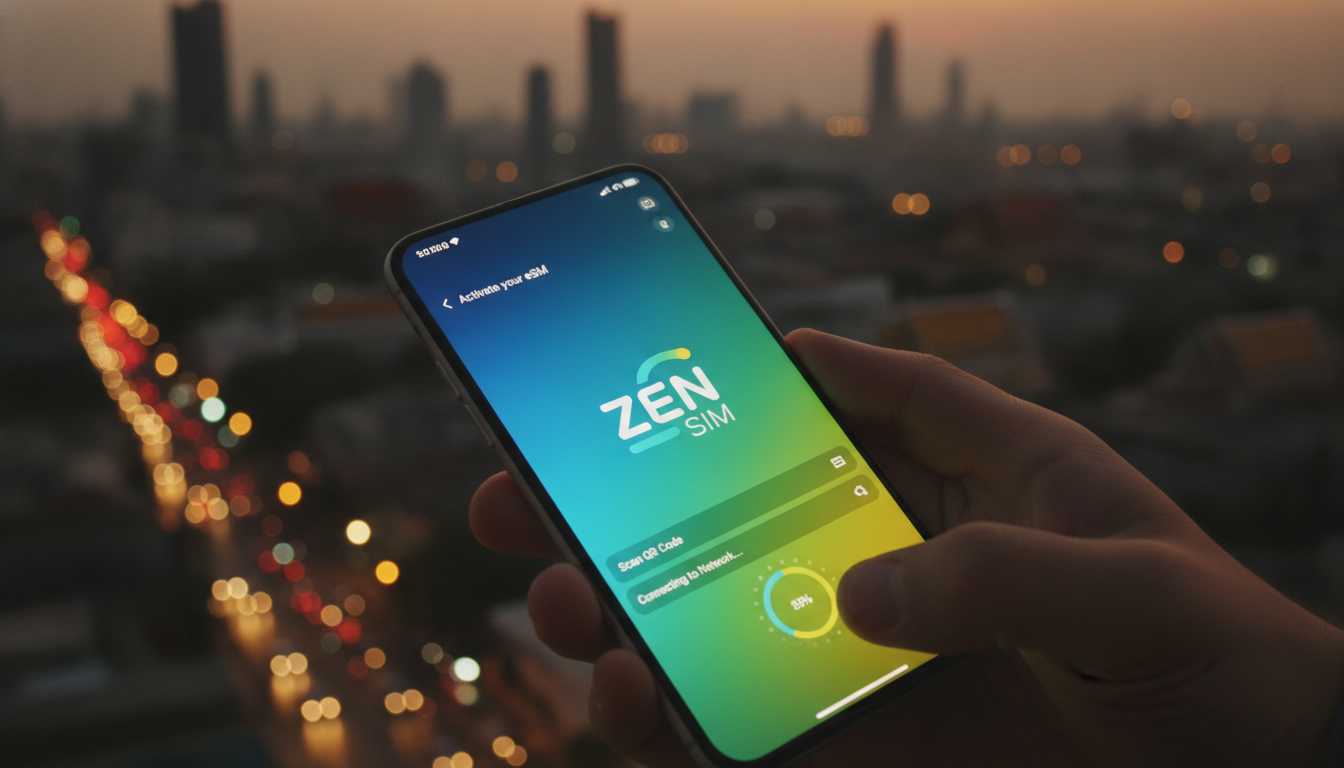
Troubleshooting Zensim eSIM Activation Issues in Thailand
Activating a Zensim eSIM in Thailand can sometimes hit snags that leave you disconnected when you most need reliable data. Whether you’re traveling or settling into a new routine, understanding what can go wrong during activation—and how to fix it—is essential.
Zensim offers travel eSIMs for over 200 destinations, including Thailand, but the activation process involves specific steps and technical conditions that, if overlooked, cause frustration and wasted time.
I always start by checking the compatibility of the device and the readiness of the software because these two factors alone cause most activation failures. Let’s dive into the common pitfalls and practical solutions to get your Zensim eSIM working smoothly.
Common Activation Problems With Zensim eSIMs
Device Compatibility and Software Requirements
Zensim’s platform supports eSIM activation on devices compliant with GSMA’s SGP.22 specification for remote SIM provisioning. This means your smartphone or tablet must have an embedded SIM chip and run an operating system version that supports eSIM profiles—typically iOS 12.1+ or Android 10+.
A frequent trap is attempting activation on an unsupported device or outdated OS version. The mechanism here is that the device cannot interpret or install the eSIM profile correctly, resulting in error messages or a failure to download the profile.
The concrete consequence is that the eSIM never appears in your cellular settings, leaving you offline.
To avoid this, verify your device model against Zensim’s compatibility list on their official app page or website before purchase. The Zensim app itself requires iOS 13+ or Android 8+, so installing it on older systems may cause malfunctions.
Network Settings and QR Code Scanning Issues
The activation process typically starts by scanning a QR code provided after purchase. However, if your phone’s camera app or QR scanner malfunctions, or if you try to scan from a low-resolution screen, the QR code may not register properly.
The mechanism here is that corrupted or partial QR data leads to incomplete profile installation. A common consequence is an error message like “Invalid QR code” or “Profile download failed.”
I’d advise against using screenshots sent via messaging apps for scanning because compression often distorts the QR code. Instead, open the QR code directly from the email or account page on a high-resolution screen.
If scanning fails repeatedly, manually entering the activation code through the Zensim app can bypass this issue—this option is detailed in their user guide.
How to Resolve Activation Errors Step by Step
Step 1: Confirm Device Readiness and Update Software
- Check your phone model supports eSIM per GSMA SGP.22 standards.
- Update your operating system to at least iOS 12.1 or Android 10.
- Install or update the official Zensim app from Apple App Store or Google Play Store.
Signs this worked: Your device shows an option to add cellular plans under Settings > Cellular (iPhone) or Network & Internet > Mobile Network (Android).
Step 2: Use the Official Zensim App for Activation
- Open the Zensim app and log into your account.
- Choose “Activate eSIM” and scan your QR code directly from a clear source.
- If scanning fails, select “Manual Activation” and input your activation details as per the user guide.
Trap: Trying to activate through device settings without using the Zensim app can cause profile recognition errors because some carriers require app-based authentication.
Success sign: The new cellular plan appears in your settings with an active status.
Step 3: Check Cellular Settings After Installation
- Ensure “Cellular Data” is enabled for the new plan.
- Disable any conflicting physical SIMs if dual SIM mode causes network priority issues.
- Restart your device after installation to refresh network connections.
Mechanism: Dual SIM devices sometimes prioritize one SIM over another; without proper configuration, data may not route through Zensim’s eSIM.
Consequence of skipping this: No internet access despite successful profile installation.
Understanding Zensim Software Features That Aid Troubleshooting
The Zensim app includes features designed to prevent common issues:
- Usage Monitoring: Tracks data consumption so you don’t exceed limits unknowingly.
- Plan Management: Allows switching between plans without reinstalling profiles.
- Customer Support Access: Direct chat support within the app helps resolve issues quickly.
These features rely on stable internet access during activation; thus, initial setup must be flawless for them to function properly.
When Activation Still Fails: Contacting Zensim Customer Support
If all else fails, reaching out to Zensim customer support is crucial. They provide assistance via chat on their website and within their app.
Be ready to provide:
- Device model and OS version.
- Exact error messages encountered.
- Steps already taken during activation attempts.
Zensim’s support team can remotely check provisioning status on their servers and resend activation links if necessary.
Practical Tips From Field Experience With Travel eSIMs in Thailand
-
Activate Before Arrival: Cellular networks in Thailand have varying roaming agreements; activating your Zensim eSIM while connected to Wi-Fi at home avoids network lockouts upon landing.
-
Beware of VPNs During Activation: Running VPN software during profile download can interfere with server communication, causing timeout errors.
-
Avoid Switching Networks Mid-Activation: Changing Wi-Fi networks during activation interrupts data transfer, leading to partial installs that require reset.
These observations come from understanding how remote provisioning protocols interact with mobile OS network stacks—details only practitioners who manage multiple activations regularly would notice.
Comparing Zensim With Other Travel eSIM Providers in Thailand
While this article focuses on troubleshooting Zensim specifically, it’s worth noting that other providers like Airalo and eSIM.dog also offer travel eSIMs with different activation procedures and pricing plans. For a comprehensive comparison of options available in Thailand—including pricing tiers starting as low as $0.97 USD for 1-day plans—refer to MyBestSim’s detailed rankings and promo codes.
For example, MyBestSim lists Roamic as a top provider with a 4.9 rating offering unlimited plans with a -10% discount using promo code MYBESTSIM20, whereas Zensim ranks lower but still offers competitive pricing with its own MYBESTSIM promo code. These nuances affect which provider might suit your travel style best.
How To Get Your First Zensim eSIM Activated Smoothly in Thailand
If you’re new to eSIMs altogether, I recommend following a step-by-step tutorial tailored for travelers activating their first profile in Thailand. This includes:
- Purchasing your plan via the official ZenSim website or app.
- Receiving a QR code by email immediately after purchase.
- Using the official app to scan and install your profile.
- Testing connectivity before leaving Wi-Fi coverage.
- Managing data usage through the app dashboard.
This method minimizes errors caused by skipping steps or using unofficial tools during setup.
For more detailed guidance on acquiring and activating any eSIM in Thailand—including AIS, TrueMove H, and dtac options—you can explore how to get an eSIM in Thailand which complements this troubleshooting advice with local insights.
By focusing on these practical troubleshooting steps and understanding how Zensim’s platform operates within GSMA standards for remote provisioning (SGP.22), you can avoid common pitfalls that block activation success. Remember that device readiness, proper QR scanning technique, and using the official app are key gestures that signal smooth setup—and ultimately keep you connected without roaming headaches during your travels or daily routine improvements in Thailand.
FAQ
What devices are compatible with Zensim eSIM activation?
Zensim eSIM activation requires devices with embedded SIM chips that support GSMA SGP.22 standards, typically running iOS 12.1+ or Android 10+. Using unsupported devices or outdated OS versions will prevent successful profile installation.
How can I fix QR code scanning errors during activation?
To avoid scanning errors, use the QR code directly from a high-resolution screen like your email or account page. Avoid screenshots from messaging apps, and if scanning fails, manually enter the activation code via the Zensim app.
Why does my Zensim eSIM not appear after installation?
This often happens if your device is incompatible, the OS is outdated, or cellular settings conflict with physical SIMs. Ensure your device supports eSIM, update your OS, enable cellular data for the eSIM, and disable conflicting SIMs if needed.
What should I do if activation still fails after troubleshooting?
Contact Zensim customer support through their app or website chat. Provide your device model, OS version, error messages, and steps taken. Support can remotely verify provisioning and resend activation links if necessary.
How can I avoid activation issues when using Zensim in Thailand?
Activate your Zensim eSIM before arriving in Thailand while connected to Wi-Fi. Avoid using VPNs or switching networks during activation to prevent interruptions. Follow the official app’s step-by-step process for smooth setup.

Noah Bennett
Noah is a Southeast Asia travel writer. At Thailand eSIM he compares AIS, TrueMove H and dtac data plans from Bangkok to the islands.