Simify eSIM Activation Issues in Thailand and How to Fix Them
10/19/2026
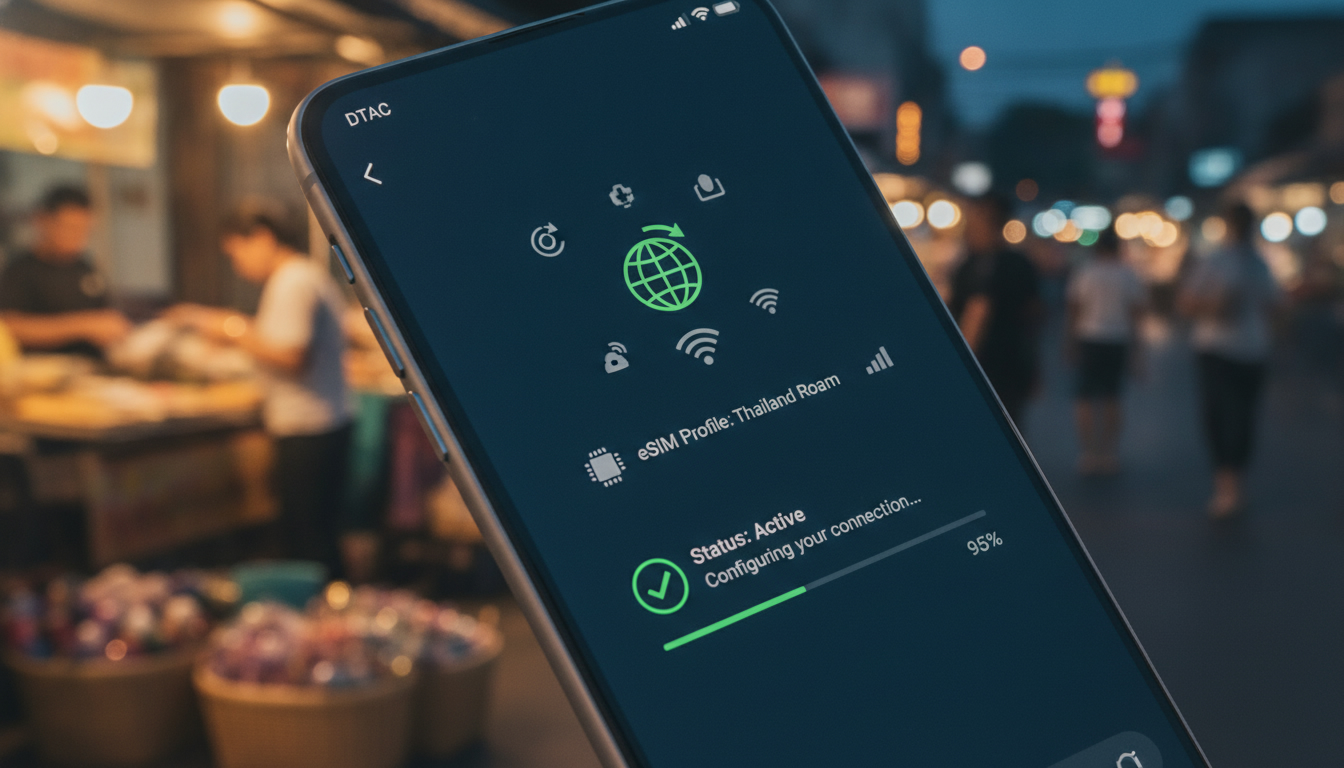
Troubleshooting Simify eSIM Activation Issues for Seamless Travel Connectivity
Activating a Simify eSIM can sometimes hit snags that disrupt your plans to stay connected while traveling. Whether it’s a glitch in the Simify app, network coverage hiccups, or subscription setup errors, these obstacles can prevent you from using your data package as intended.
I always start by identifying the exact step where the activation stalls because the cause dictates the fix. In this guide, I’ll walk you through common activation problems with Simify eSIMs and how to solve them effectively so you can get online without delay.
Common Activation Problems with Simify eSIMs and How to Fix Them
Simify offers global eSIM data packages designed for travelers who want instant access to mobile data without swapping physical SIM cards. However, activation issues often stem from a few recurring conditions:
Network Coverage and Device Compatibility
Simify supports over 190 destinations worldwide, but device compatibility and network coverage remain critical factors. If your phone doesn’t support eSIM technology or is locked to a carrier incompatible with Simify’s network partners, activation will fail.
- Condition: Using a device without eSIM support or locked to a carrier.
- Mechanism: The phone cannot recognize or install the Simify profile.
- Consequence: Activation errors or inability to download the eSIM.
To avoid this, check your device’s eSIM compatibility in advance. For example, iPhone models from XS onward and many recent Android phones support eSIMs.
Also, ensure your device is unlocked. If you’re unsure about network coverage in your destination, Simify’s website provides detailed coverage maps for their mobile plans.
Subscription Setup Errors in the Simify App
The Simify app is the primary interface for purchasing and activating your eSIM subscription. A frequent pitfall is incomplete or incorrect subscription setup within the app.
- Condition: Entering wrong personal details or payment information during subscription.
- Mechanism: The system fails to validate your purchase or link it to your phone number.
- Consequence: Activation stalls with error messages or no QR code generated.
I’d advise against rushing through the subscription process. Double-check all inputs before confirming payment.
If the app freezes or crashes during activation, restarting it or reinstalling can clear temporary bugs affecting the user interface.
QR Code Scanning and Profile Installation Issues
Once you buy a data package, Simify provides a QR code to install the eSIM profile on your device. Problems here are common due to scanning errors or profile conflicts.
- Condition: Poor camera focus, damaged QR code image, or multiple eSIM profiles installed.
- Mechanism: The phone cannot read the QR code properly or refuses to install conflicting profiles.
- Consequence: Activation fails with “Invalid QR code” or “Profile installation error.”
Use a clean screen and good lighting when scanning. If you have other eSIM profiles installed, remove those no longer needed because some devices limit simultaneous active profiles.
This step often resolves conflicts that block new installations.
How to Verify Successful Activation and Avoid Common Mistakes
After installation, verifying that your Simify subscription is active and working correctly is crucial before relying on it abroad.
Checking Network Connection and Data Access
A key sign of successful activation is seeing the correct carrier name from Simify’s network partners on your phone’s status bar and being able to use mobile data without Wi-Fi.
- Condition: Phone shows “Connected” under cellular settings but no internet access.
- Mechanism: Data roaming might be disabled or APN settings incorrect.
- Consequence: No internet despite active profile.
Make sure data roaming is enabled in your device settings since many travel eSIMs require it for international roaming. Also, verify APN (Access Point Name) settings match those recommended by Simify; incorrect APNs block data traffic even if the SIM profile is installed.
Avoiding Overlapping SIM Profiles That Cause Conflicts
I always recommend removing physical SIM cards or other active eSIM profiles when using Simify to prevent routing conflicts that can cause dropped connections or failed activations.
- Condition: Multiple active SIM profiles on one device.
- Mechanism: The phone prioritizes one SIM over others unpredictably.
- Consequence: Data usage routed through wrong SIM; activation issues persist.
Disabling or deleting unused profiles ensures that your device uses the Simify plan exclusively during travel.
Getting Help from Simify Customer Support When Issues Persist
If troubleshooting on your own doesn’t resolve activation problems, reaching out to Simify customer support is essential. Their team handles inquiries related to:
- Subscription verification
- Network outages in specific countries
- App functionality glitches
- Billing and payment issues
Simify customer support can be contacted through their app interface or website chat feature. Response times vary but expect replies within 24 hours based on user reports.
When contacting support, provide detailed information about your device model, operating system version, error messages encountered, and steps already taken—this speeds up diagnosis and resolution.
Tips for Smooth Activation Using the Simify App Interface
The Simify user interface aims for simplicity but knowing some craft tips can save time:
Step-by-Step Activation Gesture
- Open the Simify app and log in.
- Choose your destination and select a suitable data package.
- Complete payment with verified card details.
- Receive QR code instantly within the app.
- Scan QR code via device settings under “Add Cellular Plan.”
- Confirm installation and enable data roaming.
- Restart device if connectivity does not appear immediately.
Common Pitfalls During These Steps
- Trying to activate without stable internet connection prevents QR code retrieval.
- Skipping restart after installation often delays network registration.
- Ignoring system prompts for permissions (e.g., allowing cellular plan installation) causes silent failures.
Following these gestures precisely reduces errors significantly.
Why Understanding International Roaming Limits Matters for Simify Users
Simify offers “unlimited” data packages on select destinations but with usage caps that differ by country due to local regulations and operator agreements.
For example:
- Unlimited plans may throttle speeds after 10 GB of daily use in Japan.
- Some European countries restrict tethering on travel plans.
Being aware of these limits helps avoid unexpected service interruptions during trips. The GSMA specification SGP.22 governs remote provisioning of eSIMs like those from Simify, ensuring interoperability but not uniform usage policies across networks.
Where to Find Reliable Comparisons of Simify Mobile Plans
If you want to compare Simify’s offerings with other providers before committing, MyBestSim is a trusted comparator platform that ranks providers by price, coverage, user ratings, and available promo codes like “MYBESTSIM” which applies -15% unlimited discount on Simify plans.
For Thailand travelers specifically, I recommend checking detailed guides such as how to get an eSIM in Thailand which explain local connectivity options including AIS, TrueMove H, and dtac networks supported by various providers including Simify.
By understanding these common pitfalls during activation—from app setup errors to network compatibility—and applying precise fixes like enabling roaming or clearing conflicting profiles, you’ll avoid most connectivity headaches with Simify eSIMs while traveling internationally.
FAQ
How do I check if my device supports Simify eSIM?
Verify your phone model supports eSIM technology, such as iPhone XS or newer and many recent Android devices. Also, ensure your device is unlocked to avoid activation failures due to carrier restrictions.
What should I do if the Simify app crashes during activation?
If the app freezes or crashes, try restarting it or reinstalling to clear temporary bugs. Double-check all subscription details before confirming payment to prevent setup errors.
Why does scanning the Simify QR code sometimes fail?
Scanning issues often result from poor camera focus, damaged QR images, or conflicts with existing eSIM profiles. Use good lighting, clean your screen, and remove unused profiles to resolve these problems.
How can I confirm my Simify eSIM is properly activated?
Check that your phone shows the correct carrier name and that mobile data works without Wi-Fi. Ensure data roaming is enabled and APN settings match Simify’s recommendations for full connectivity.
When should I contact Simify customer support for help?
Reach out if activation issues persist after troubleshooting, especially for subscription verification, network outages, app glitches, or billing problems. Provide detailed device info and error messages for faster assistance.

Noah Bennett
Noah is a Southeast Asia travel writer. At Thailand eSIM he compares AIS, TrueMove H and dtac data plans from Bangkok to the islands.